
Product updates
Lapis 3.3: video questions, Apple documents, and more ways to talk
Ask about videos and Pages, Numbers, and Keynote files. Eight voices across four languages, help from Lapi, and Link improvements. Simpler dictation and model selection on Mac.
What to try
- Attach a video and ask about its visual content with a compatible local model, such as a video-enabled Qwen3.5 model in the catalog.
- Bring Pages, Numbers, and Keynote files into a conversation alongside PDFs and scanned documents.
- Talk with eight on-device voices across English, Spanish, French, and Hindi. Live Voice requires Lapis Pro and the necessary voice resources.
- Ask Lapi for help in Settings, and try Wake Mac when reconnecting to a compatible, previously paired Mac on your local network.
This November update expands what you can bring into a conversation. Lapis 3.3 adds questions about videos, support for Pages, Numbers, and Keynote documents, and more ways to speak and listen in your language.
It also introduces Lapi, a guide inside the app, and makes it easier to return to a connection with your Mac. Here is what you can start using.
Ask about what happens in a video
A photo captures one moment. A clip lets you ask about changes across several moments: the steps in a demonstration, a movement, or the result of a process. With 3.3, you can attach a video to chat and ask a compatible local model to analyze its visual content.
What steps are shown in this demonstration? Summarize them in order and point out anything that is hard to see.
Select a video-enabled model in the catalog, attach the clip, and ask a specific question. Compatible Qwen3.5 models are one option; support for photos does not mean every vision model can process video. Availability also depends on your device’s memory.
Local analysis does not require sending the clip to an external inference service. Download the model first and check compatibility. Answers may miss details or misinterpret a scene, so check the original video. This feature analyzes visual content; it should not be read as a promise of audio transcription.
For a step-by-step walkthrough with file limits and a 6-second test clip, see how to ask questions about a video in Lapis.
For a still-image walkthrough, read how to ask questions about a photo in Lapis.
Bring your Apple documents into chat
Your report is still in Pages, the budget is in Numbers, and the presentation is in Keynote. You can now bring those files into a conversation alongside PDFs and scans, and ask about the content Lapis can extract.
Summarize the decisions in this presentation. Separate unfinished tasks from those that already have an owner.
Attach the file and ask about a section, a figure, or a decision. You do not need to convert everything to PDF to get started. The content available depends on the document and its reading limits: asking about a spreadsheet does not mean recalculating its formulas or editing the original.
Check figures and conclusions against the source file. For organizing several conversations and reusable instructions, Projects remain a Lapis Pro feature.

To keep conversations about the same work together, see how to organize your chats with Lapis Projects.
Eight voices across four languages
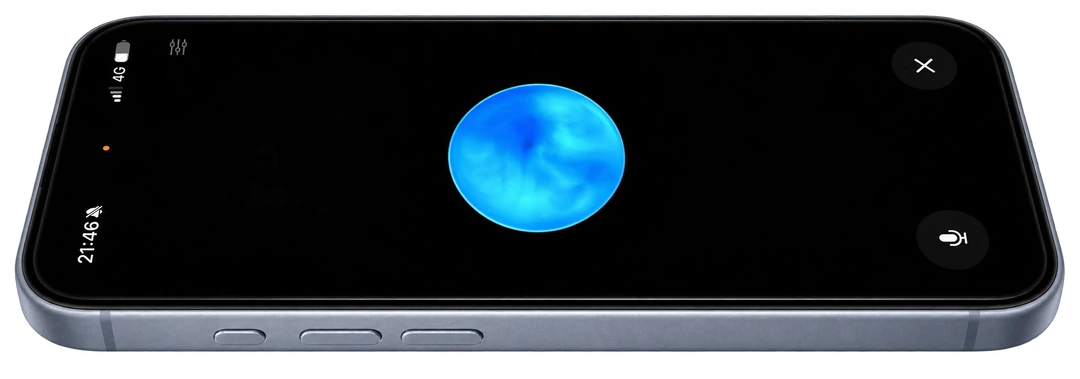
On iPhone and iPad, Live Voice now offers eight on-device voices across English, Spanish, French, and Hindi. Choose the voice and language for the voice workflow you want to use, without relying on an external speech-synthesis service for those local voices.
Use it to think through an idea while walking, listen to an explanation, or continue a conversation without typing every message. Set up the necessary resources before you need the feature offline.
Live Voice requires Lapis Pro, compatible hardware and a compatible model, the appropriate voice resources, and the necessary microphone and recognition permissions. Choosing a voice does not make a cloud model local: where the conversation is processed still depends on the selected mode.
Spend less time finding the next step
Lapi offers guidance inside the app
If you are unsure which model to choose, how to organize a project, or where to find a setting, open Lapi from Lapis Settings. The guide uses information about the app to help you find a next step.
Try asking, “How do I choose a model for my device?” or “How do project instructions work?” Lapi offers guidance; it does not mean settings are changed or actions are performed on your behalf.
Return to your Lapis Link connection
The update improves reconnection and adds Wake Mac to try waking a compatible, previously paired Mac on the same local network. It can save a trip to the computer when you just want to resume a conversation.
This depends on the hardware, sleep settings, and network. It does not guarantee starting a powered-off Mac or waking it from anywhere. Apple explains the settings for waking a Mac for network access. To answer, the Mac must become reachable with Lapis Link running. Link requires Lapis Pro.
See how the devices work together in the Lapis Link overview of using your Mac as a server.
On Mac, simpler dictation and model selection
Lapis Flow simplifies setup and makes the permissions needed for dictating into your Mac apps clearer. If you choose Parakeet Ultra, download its model before using it.
You can also answer a few questions about your tasks and your computer’s resources to get model recommendations that fit your Mac. It offers a more direct starting point when the catalog has many options.
Update Lapis
Install or update Lapis on iPhone, iPad, and Mac through the official Lapis App Store listing. Each feature retains the model, memory, and plan requirements shown in the app.