Vision & Multimodal
How to ask questions about a video with local AI in Lapis
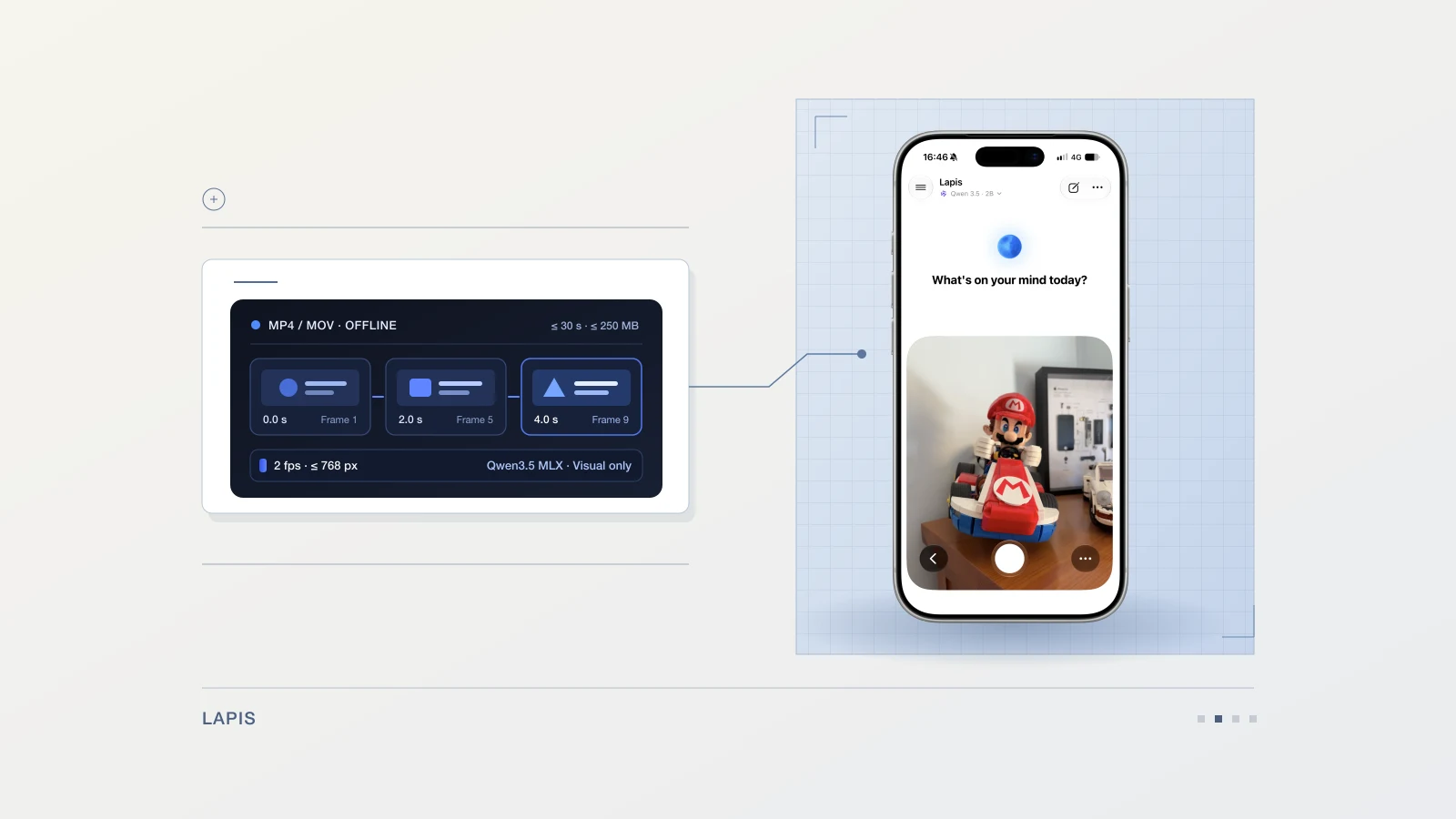
Attach an MP4 or MOV clip up to 30 seconds in Lapis 3.3 for iPhone, iPad, or Mac. Use Qwen3.5 with MLX to inspect steps, changes, and visible text offline.
What to try
- Choose a 4-bit Qwen3.5 model in Models (0.8B, 2B, 4B, or 9B on Mac). Video requires Lapis PRO (included without a subscription for Spain App Store accounts); other vision models do not enable video in Lapis 3.3.
- Attach an unprotected MP4 or MOV clip up to 30 seconds and 250 MB from + and Video (Photos or Files on iPhone and iPad; the local file picker on Mac).
- Lapis samples 2 visual frames per second (up to 60 frames) at up to 768 px on the longest side in SDR on your device. It does not transcribe or analyze audio.
- Verify answers in the built-in video viewer (Save Video or X), and confirm offline processing in Airplane Mode after downloading the model.
A photo captures a single moment; a short video shows the order of steps, an indicator changing color, or the exact frame where something breaks. With Lapis 3.3, you can attach an MP4 or MOV clip straight to chat on iPhone, iPad, or Mac and ask a local Qwen3.5 model what happens in the footage without uploading your video to the cloud.
1. Check requirements and pick a Qwen3.5 model
Video questions in Lapis 3.3 work exclusively with MLX models from the Qwen3.5 family running directly on your device. Other vision models in the catalog—such as LFM2.5-VL 3B, Ministral 3 3B, or Gemma 4—handle still photos, but they do not enable the Video attachment option.
Qwen3.5 models and video analysis require Lapis PRO (included without a subscription for Spain App Store accounts; available with a free trial or subscription elsewhere). The clip also needs to be processed on the device running the model: Lapis Link is built for encrypted text chats between your iPhone or iPad and your Mac, and does not transfer video files.
Open Models in Lapis, check compatibility for your hardware, download a Qwen3.5 model that fits your memory, and select it in the chat model picker. You only need an internet connection for that initial model download.
| Model | Download (MB) | Est. RAM (MB) | Devices |
|---|---|---|---|
| Qwen3.5 0.8B 4-bit | 622 | 2,100 | iPhone, iPad, Mac |
| Qwen3.5 2B 4-bit | 1,669 | 3,300 | iPhone, iPad, Mac |
| Qwen3.5 4B 4-bit | 2,920 | 4,302 | Mac, iPad (tight on 8 GB iOS) |
| Qwen3.5 9B 4-bit | 5,701 | 7,500 | Apple Silicon Mac only |
See how Lapis vision and document features fit your plan and device on the features page.
2. Attach an MP4 or MOV clip on iPhone, iPad, or Mac
Once a compatible Qwen3.5 model is active in your conversation, the Video option appears in the composer attachment menu:
- On iPhone or iPad: tap + in the composer, select Video, and choose Photos to pick a clip from your library or Files for a saved MP4 or MOV file.
- On Mac: click + in the composer and choose Video to open the native file picker for a local MP4 or MOV file. Drag-and-drop in Lapis prepares images and documents, not video clips.
- Wait for the preview thumbnail: Lapis displays a thumbnail in the draft while sampling frames. You can attach one clip per message; choosing a new clip replaces the draft once it finishes preparing.
During import, Lapis enforces fixed on-device bounds using Apple’s local media decoders: clips must be unprotected MP4 or MOV files up to 30 seconds long and 250 MB. Lapis samples 2 visual frames per second (up to 60 frames total) and scales the longest edge to at most 768 px in standard dynamic range (SDR).
If you only need to inspect a single still image or screenshot, follow our guide on how to ask questions about a photo in Lapis.
3. Test the workflow with a 6-second sequence
To verify how your device handles a clip before using real footage, record a reproducible 6-second desk test with three numbered index cards or sticky notes: 101 at 0 seconds, 204 at 2 seconds, and 309 at 4 seconds—ideally paired with a clear visual change such as flipping a switch or an indicator light.
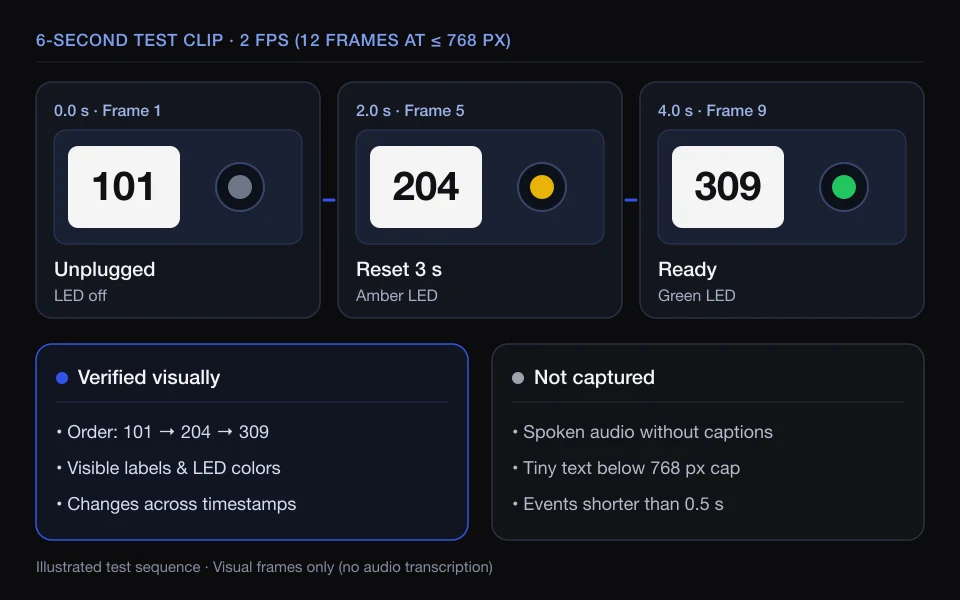
Attach your 6-second clip and send this prompt with it:
List the card numbers and visible state changes in chronological order. If any label or detail is hard to read, mark it as unreadable instead of guessing.
In the reply, check that the model preserves the order (101 → 204 → 309) and accurately describes the state change from start to finish. If you also spoke an instruction aloud without showing it as on-screen text or captions, the reply won’t include it: video analysis in Lapis 3.3 inspects visual frames only and does not transcribe audio tracks.
To double-check any detail against the original footage, tap or click the video thumbnail in your draft or sent message. This opens the built-in viewer, where you can play the clip, export the original with Save Video (to Photos on iPhone/iPad or as a file copy on Mac), and close with X. Editing your message, regenerating a reply, or duplicating the chat keeps the video evidence attached.
4. Verify offline execution without a network connection
Once your Qwen3.5 model is downloaded, frame sampling and inference run locally on your iPhone, iPad, or Mac. To verify zero network dependence yourself:
- Open Models → Installed and confirm your Qwen3.5 model is ready.
- Turn on Airplane Mode and make sure Wi-Fi is switched off.
- Start a fresh chat with that Qwen3.5 model selected, attach your 6-second test clip, and send the prompt.
Imported video originals are kept locally on your device, stored separately from the text chat archive. Neither the clip nor its sampled frames leave your device when running a downloaded MLX model.
To dig into why 2 fps and 768 px govern visual tokens and memory use, read our technical breakdown on local video analysis on Apple Silicon.
5. Fix common video attachment and context errors
- Video doesn’t appear under +: check the active model picker at the top of the chat. You need a downloaded, compatible Qwen3.5 model selected—not Apple Intelligence, Lapis Link, or another vision family like LFM2.5-VL or Gemma 4.
- “Choose a video up to 30 seconds and 250 MB”: the file exceeds the duration or file-size ceiling. Trim it to 30 seconds or shorter in Photos or QuickTime before attaching.
- “This video couldn’t be decoded”: the file uses an unsupported codec, has DRM protection, or is a QuickTime reference movie pointing to external media. Re-export it as a self-contained, unprotected MP4 or MOV.
- “These videos exceed the available context”: total sampled frames across the conversation exceed the 60-frame limit or available model context. Start a new chat, trim the clip shorter, or switch to a smaller model like Qwen3.5 0.8B 4-bit or 2B 4-bit.
- The model misses spoken audio or tiny text: add visible on-screen captions when speech matters, or film closer so text stays legible after scaling the longest edge down to 768 px.
6. Which version does this guide cover?
This November 2026 guide documents Lapis 3.3 across iPhone, iPad, and Mac. Requirements, attachment limits, and interface labels were verified against the Lapis 3.3 codebase and bundled user guide; actual response speed and usable context depend on your device’s chip and available memory.
To see what else arrived alongside local video questions, check the Lapis 3.3 update with Apple documents and eight voices.
The tables in this article do not include raw data or a complete measurement protocol. Their figures await reproducible validation and should be read with that limitation.
Sources and references
- Lapis — Official App Store listing (Version 3.3)
Apple App Store
- Qwen3.5-2B-4bit — MLX model card
MLX Community · Hugging Face
- Qwen3.5-4B-4bit — MLX model card
MLX Community · Hugging Face
- AVAssetImageGenerator — AVFoundation Documentation
Apple Developer Documentation, Apple Inc.
Local execution with Lapis
Chat with compatible models on iPhone, iPad and Mac. Download them once and use local inference offline; model size depends on your device’s resources.