
Vision & Multimodal
How to ask questions about a photo with local AI in Lapis
Attach an image in Lapis for iPhone, iPad, or Mac. Use Qwen3.5 2B with MLX to read a sign, explain a diagram, or extract data from a screenshot.
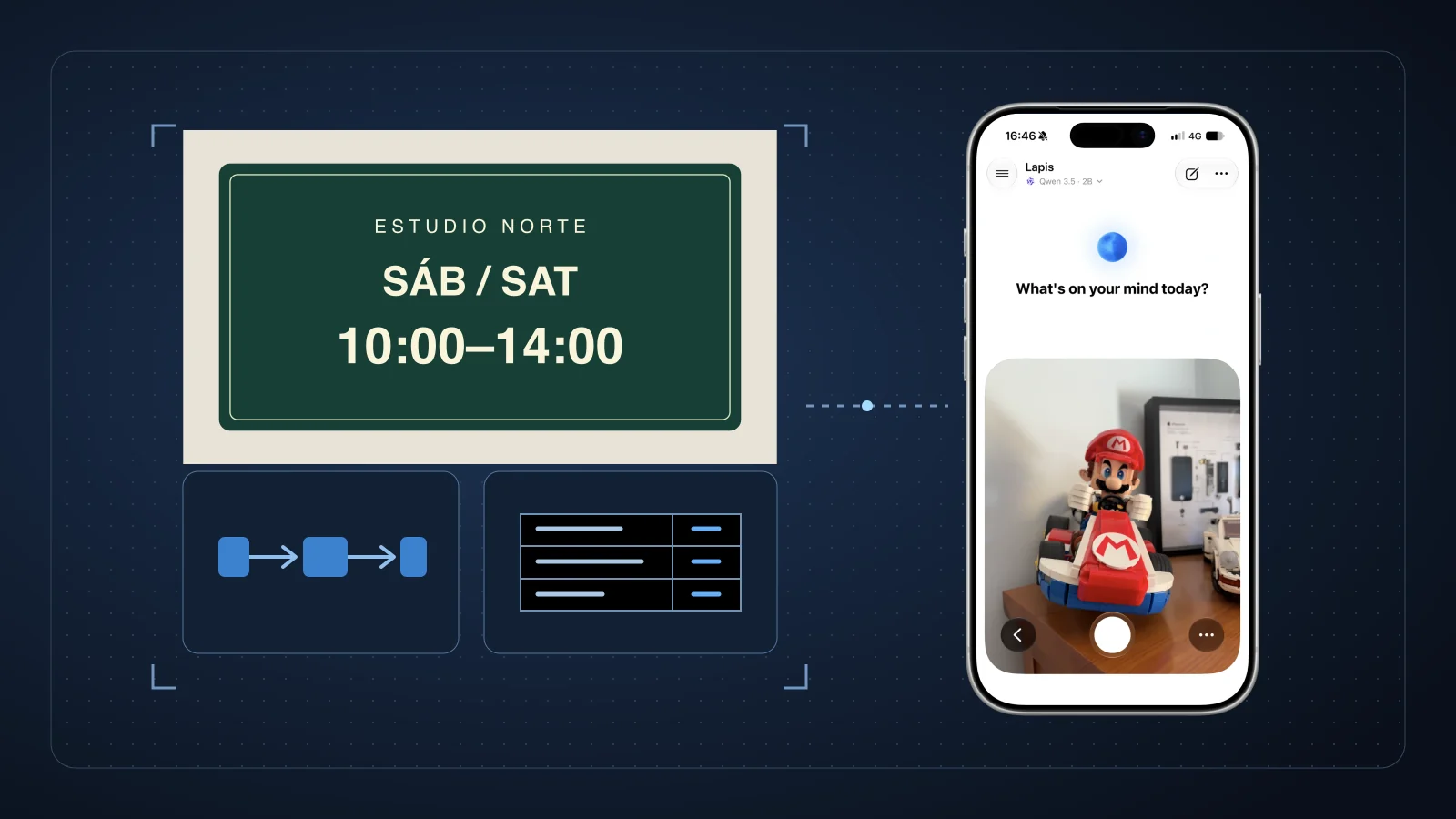
What to try
- In Models, select a vision model compatible with your device. This example uses Qwen3.5 2B 4-bit and requires Lapis PRO.
- Add an image to the draft and write a specific question before sending it.
- Ask the model to separate what it sees from what it infers and mark unreadable details.
- Check numbers, small text, and arrow directions against the original image.
A photo of opening hours, a diagram on a whiteboard, or a screenshot of a table often contains one specific detail you need. In Lapis, you can attach the image to a chat, point to the part that matters, and ask for an answer in a format you can check.
1. Choose a local vision model for your device
Open Models and look for models with the Vision capability. This walkthrough uses Qwen3.5 2B 4-bit, a text and image model in MLX format available with Lapis PRO. If the catalog shows it as compatible with your device, download it and select it in chat. The download requires internet access. Once installed, this model processes the image on the device running it.
If the 2B model does not fit on your device, look for a smaller compatible vision model in the catalog. Available memory and your choice of model affect how much detail you can comfortably analyze.
To compare sizes and capabilities, see the guide to local vision models for iPhone.
2. Attach a photo and ask a question in the same message
- On iPhone or iPad, tap + in chat. Choose Camera to take a photo, Photos to pick one from your library, or Files to open a saved image.
- On Mac, use the attachment menu or drag an image from Finder into the chat. On iPad, you can drag a file into the chat as well.
- Check that the thumbnail appears in the draft. Write what you want to read or understand and send the message with the image. For this workflow, select the vision model you downloaded on that device. Lapis Link is designed for text chats.
Read more about how questions about photos work in Lapis.
3. Read the opening hours on a sign
Use a straight-on photo with the lettering in focus, or save this sample sign and attach it in Lapis.

Transcribe the Saturday opening hours. Return only the opening and closing times. If you cannot read a number, mark that value as unreadable.
The hours you can verify on the sign are 10:00 to 14:00. If your own photo has glare or tiny lettering, crop to the hours or take another photo from closer up.
4. Explain a diagram by following its arrows
Attach a screenshot of a flow with boxes, labels, and arrows. To understand a deployment diagram, try this prompt.
List the stages in the order indicated by the arrows. Use the exact labels in the boxes. Then describe the condition for each branch if it’s written in the diagram.
Check arrow direction and decision labels against the image. If several branches overlap, crop them one at a time and include any legend needed to interpret each crop.
5. Extract rows and numbers from a screenshot
Crop the table so the column headers and the rows you need are visible. For a long table, work in batches and keep the headers in each screenshot.
Extract the first three visible rows as a Markdown table. Include name, date, and amount. Keep decimal separators and units as shown. Write “unreadable” for any cell you cannot read.
Compare the amounts with the original before copying them. A well-formatted answer can still contain a wrong digit or a value from the neighboring row.
If you have the full document, you can ask about the PDF in Lapis and open the cited page.
If you need to track changes across several moments, try asking questions about a short video in Lapis.
Which version does this guide cover?
This November 2026 guide was prepared for Lapis 3.2, released that month. Menus, the catalog, and vision model compatibility may change in later releases.
The update extends this workflow to compatible clips: see what Lapis 3.3 adds for video, documents, and voice.
Sources and references
- Lapis — App Store version history
App Store
- Qwen3.5-2B-4bit — MLX model card
MLX Community · Hugging Face
Local execution with Lapis
Chat with compatible models on iPhone, iPad and Mac. Download them once and use local inference offline; model size depends on your device’s resources.