
Privacy & Security
How to use Lapis Projects to organize local AI chats
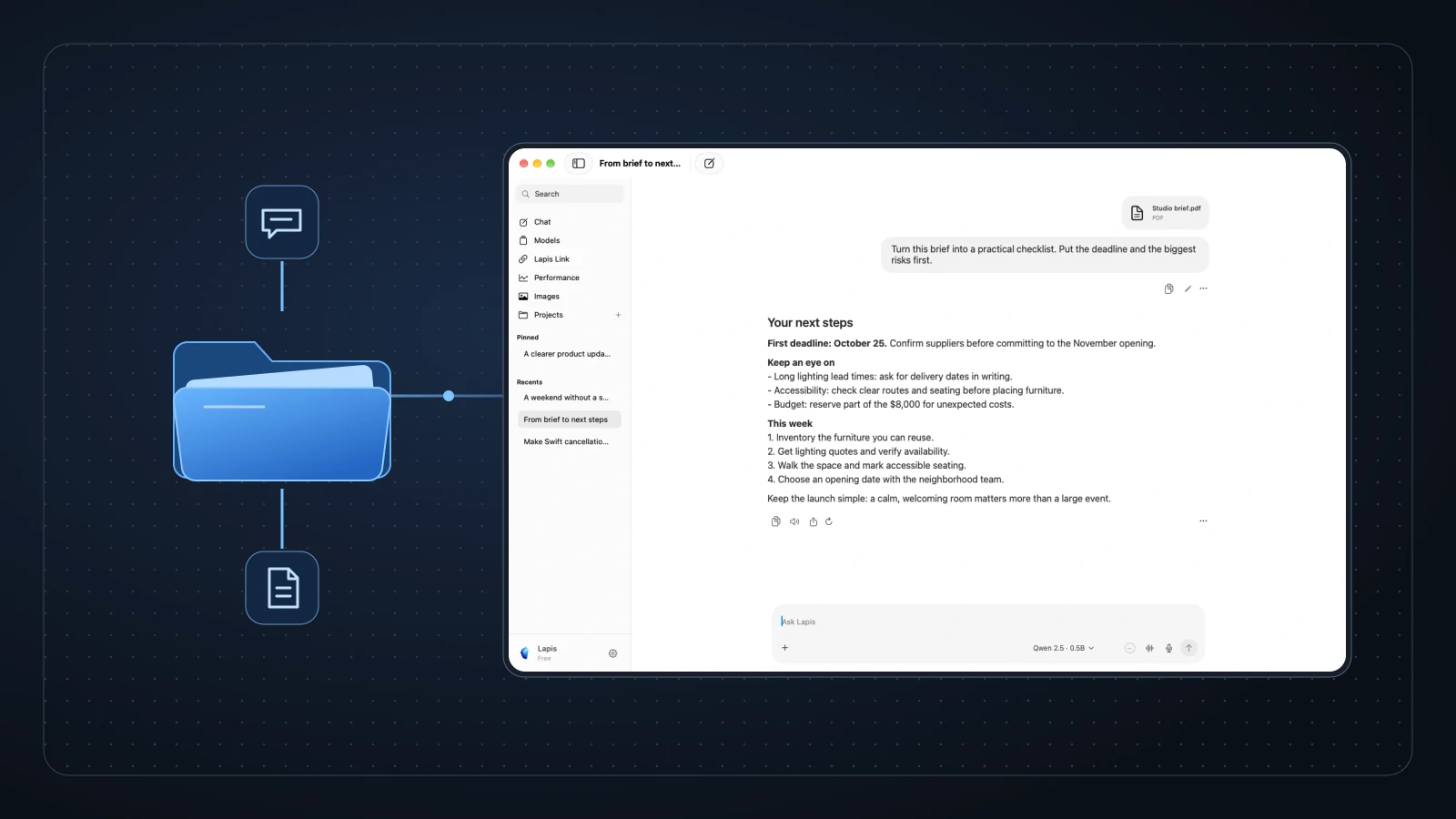
Group conversations, save reusable instructions, and ask questions about PDFs with a local model in Lapis for iPhone, iPad, and Mac.
What to try
- Create a project in Lapis PRO to group chats about the same piece of work.
- Save formatting, tone, and working rules under Instructions. They apply to new replies in the project.
- Start one chat per task and bring existing chats in with Move to Project.
- Add a PDF under Documents, use a compatible on-device model, and open citations to verify the details.
When you’re preparing a deliverable, it’s easy to end up with one chat for the draft, another for decisions, and a third for reviewing a document. Lapis lets you group those chats in one project and give them shared instructions. You can open a conversation for each task and keep the same working rules.
For this walkthrough, we’ll create a Website redesign project with two conversations, a set of instructions, and a reference PDF. Projects requires Lapis PRO.
1. Create a project on iPhone, iPad, or Mac
- On iPhone or iPad, open the sidebar, go to Projects, and tap New Project.
- On Mac, use the + button beside Projects in the sidebar.
- Enter Website redesign under Name. Add instructions now or come back to Project Settings later. Choose Create.
See Lapis Projects and instructions for what the feature includes.
2. Write instructions you can reuse
Open Project Settings and save the rules you want each project chat to follow under Instructions. For example:
Write in English. Separate decisions, open tasks, and questions. If the materials leave an owner or deadline unclear, mark it as “to be confirmed”. When you use a project document, show where the information came from.
Use the chat message for the task at hand. “Draft the review agenda” can go in the chat, while your usual format stays in the project. Lapis applies the instructions to new replies, including replies in an older chat you reopen. Leave the field empty to use the general chat instructions. Keep your rules brief so there’s room for conversation history and document excerpts.
3. Start a chat for each task and move existing chats in
- On iPhone or iPad, tap New Chat in Project. On Mac, use the compose icon beside the project or choose New Conversation from its context menu.
- Create a Decisions and deadlines chat and a Homepage draft chat. Both use the project instructions. If a decision in the first affects the draft, carry that detail over or save it in a reference document.
- To move an existing chat, touch and hold its row on iPhone or iPad, or right-click it on Mac. Choose Move to Project and select Website redesign.
4. Add a PDF and verify a cited answer
Prepare a one-page file called Launch notes.pdf. To try the workflow with fictional data, write “The first review is November 17. Marta will prepare the draft. The publication date is to be confirmed” and save it as a PDF.
- Under Documents, choose Add Documents, select the PDF, and wait for indexing. Add it to the project once, then ask about it from different project chats.
- Select a compatible model that runs on that device. On a compatible Mac with enough memory, you can download Qwen3 4B Instruct 4-bit with MLX from Models. On iPhone or iPad, choose an on-device model the catalog marks as compatible.
- In Decisions and deadlines, ask “According to Launch notes.pdf, when is the review, who owns the draft, and what date is missing?” Open the citation in the response and check the excerpt or original page.
The answer should preserve November 17, Marta’s name, and the status of the publication date. If a detail or a relevant citation is missing, check that the document is ready and ask again with the filename and the section you want.
For a one-off question, see how to chat with a PDF offline.
If the model is too large for your device, check Lapis model compatibility and memory requirements.
5. Make the project easy to pick up again
Name chats after the outcome you want. Update the reference document when deadlines change, and edit the project instructions when the way you work changes. If a conversation grows long or changes direction, start a fresh one within the project. You keep the same rules and begin with a shorter history.
To process quick text without opening a conversation, learn how to use Apple Shortcuts with local AI.
If your chats tend to run long, read how the context window works in a local language model.
Which version does this guide cover?
This November 2026 guide was prepared for Lapis 3.2, released that month. Menus, available models, and the document workflow may change in later versions.
If you work with Apple files, read what Lapis 3.3 adds for Pages, Numbers, and Keynote.
Sources and references
- Lapis — App Store version history
App Store
- Qwen3-4B-Instruct-2507-4bit — MLX model card
MLX Community · Hugging Face
Local execution with Lapis
Chat with compatible models on iPhone, iPad and Mac. Download them once and use local inference offline; model size depends on your device’s resources.