
Apple Silicon
How to run a local AI server on a Mac mini with Lapis
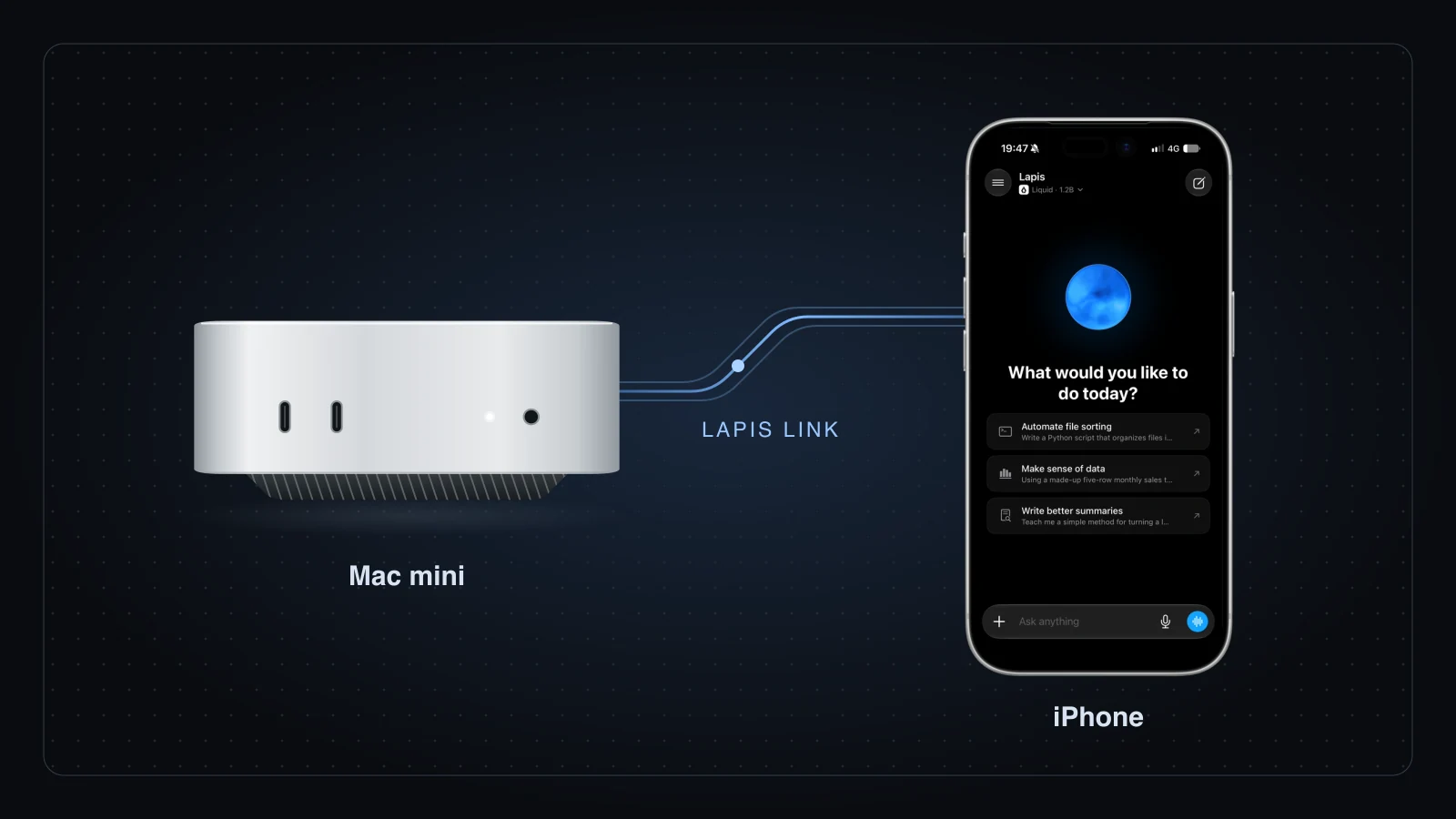
Run Qwen3 4B Instruct with MLX on a Mac mini M4, pair your iPhone over QR with Lapis Link, and send your first prompt over your local network.
What to try
- Use an Apple Silicon Mac mini and connect both devices to the same private local network.
- Download Qwen3 4B Instruct 4-bit on the Mac. This model requires PRO access on the host Mac.
- Start Lapis Link on the Mac, scan its QR code in Lapis on the iPhone, and select the Mac for chat.
- The Mac generates the answer. Lapis Link transfers encrypted text between the paired devices.
You can leave a Mac mini at home running a language model and ask it questions from Lapis on your iPhone. The phone sends the prompt over your local network and receives the answer as the Mac generates it. For this walkthrough, set up Qwen3 4B Instruct 4-bit on a Mac mini M4 with 16 GB and send a first text prompt.
1. Prepare the Mac mini and iPhone
Install Lapis on both devices and connect them to the same private IPv4 network. The Mac mini can connect over Ethernet to the router your iPhone uses over Wi-Fi. Use your regular home network for the first test. Guest networks often isolate devices from each other.
You need free disk space on the Mac and internet access to download the model. Once installed, Qwen runs with MLX on the Mac, and the Link conversation travels over the local network. You can set everything up in the Lapis interface.
If you already own a different Mac mini, see what affects local LLM performance on a Mac mini.
2. Download an MLX text model
- On the Mac, open Models and look for Qwen3 4B Instruct 4-bit. The model ID is
mlx-community/Qwen3-4B-Instruct-2507-4bit. - Check the download size and compatibility shown by Lapis. The catalog lists roughly 2.2 GB for the download. That number describes disk space. Conversation context, the cache, and other apps also use memory while the model runs.
- Download the model and wait until it appears as installed. To check that it loads before setting up the network, select it on the Mac and try a short prompt.
The Qwen example uses PRO access on the host Mac. For a smaller download, try Liquid AI’s LFM2.5 1.2B Instruct 4-bit. The Link picker shows installed text models that the Mac can serve under its plan.
Read how Lapis shows model compatibility and memory requirements before moving to a larger model.
3. Start Lapis Link and show the QR code
- On the Mac, open Settings → Lapis Link.
- Select Qwen under Text Model and click Start Lapis Link. If another Lapis service is already running in Mac-only mode, stop it before starting Link.
- Wait for the pairing code. If it is hidden, click Show Pairing Code. If the Mac offers multiple addresses under Network Options, choose the one on the network it shares with the iPhone.
The QR code contains pairing credentials. Scan it with the device you want to connect and keep it out of shared screenshots or messages.
See a visual demo of how a Lapis Link connection works on the product site.
4. Pair the iPhone and send the first prompt
Open Lapis Link from the Lapis sidebar on the iPhone. Tap Scan QR Code and point the camera at the Mac’s code. Allow camera and local network access if prompted. You can also copy the pairing code on the Mac and paste it into Enter Pairing Code.
Once preparation finishes, tap Use This Mac if it appears. Start a new chat and check that the selector shows Lapis Link and your Mac. Send this prompt:
Summarize this in two bullet points: “The meeting is Tuesday at 10. Ana will send the draft on Monday, and Luis will check the figures.”
Look for two bullets that preserve the times and assignments. The wording can vary. The connection check is that Link is selected and the answer comes back from the Mac. The iPhone does not need to download Qwen.
5. What should I check if the iPhone cannot connect?
- The QR code is missing. Check that Link has started, that the model finished downloading, and that the Mac has a private IPv4 address.
- The code scans but pairing fails. Check that both devices are on the same network and that Lapis has local network permission on the iPhone. Open the connection options and use Check Connection. If Lapis asks you to pair again, generate a fresh code.
- The phone connects but the model is not ready. Wait for preparation to finish. If it fails, free up memory on the Mac and click Restart Link. If the problem persists, repeat the test with a smaller model.
For details about what is stored on each device, see the Lapis privacy policy.
6. Keep the Mac ready for your next prompt
Keep the Mac awake and Lapis running. You can close the window. Lapis Link handles encrypted text chats between paired devices. Use the text composer for this walkthrough. Photos, PDF attachments, and voice audio are outside this workflow.
This November 2026 guide was prepared against Lapis 3.2. Menu labels, available models, and the connection flow may change in later releases.
Sources and references
- AI Offline LLM Chat: Lapis
App Store
- Mac mini (2024) — Technical Specifications
Apple Support
- Qwen3-4B-Instruct-2507-4bit — MLX model card
MLX Community · Hugging Face
Local execution with Lapis
Chat with compatible models on iPhone, iPad and Mac. Download them once and use local inference offline; model size depends on your device’s resources.