
Apple Silicon
How to use Lapis Link away from home with Tailscale
Use your Mac’s local AI model from your iPhone. Set up a Tailscale subnet router, keep your Lapis Link pairing, and test over cellular data.
What to try
- Pair Lapis Link with the QR code and test your model while the iPhone and Mac are on your home network.
- Advertise the Mac’s private IPv4 address through a Tailscale subnet router and keep SNAT enabled.
- Approve the route and allow access to the Link port in your tailnet policy.
- Turn off Wi‑Fi on the iPhone, check the Link connection, and verify that the Mac is selected when it answers.
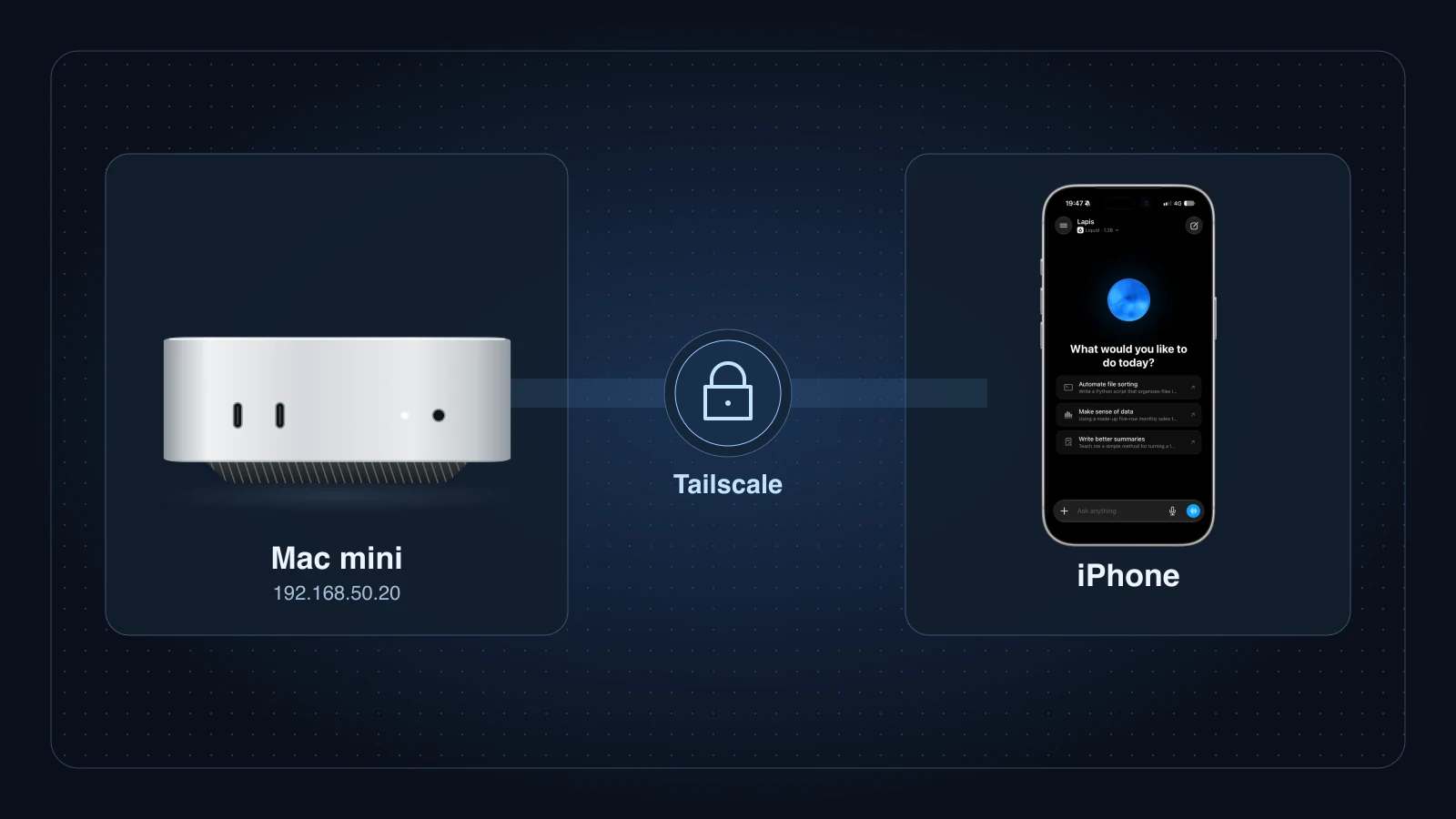
You leave a Mac mini at home running a local model such as Qwen3 4B Instruct with MLX. On home Wi‑Fi, your iPhone already gets answers through Lapis Link. When you leave, the pairing remains saved, but the phone can no longer reach the Mac’s private address.
A Tailscale subnet router can make that address reachable through your private tailnet. The Mac keeps generating the answers and the iPhone keeps its Link pairing. For this example, you need Lapis PRO, an awake Mac running Link, and a second device at home, such as a Raspberry Pi running Linux, to act as the subnet router.
1. Pair and test Lapis Link at home
- Connect the Mac and iPhone to your home network. On the Mac, open Settings → Lapis Link, choose an installed text model, and click Start Lapis Link.
- Scan its QR code in Lapis Link on the iPhone, select the Mac for chat, and send a short prompt. Wait for an answer before setting up remote access.
- Note the address and port shown in the saved connection. This example uses
192.168.50.20:8321. Reserve the Mac’s IP in your home router’s DHCP settings so it stays the same after a restart.
If you still need to install the model and pair your iPhone, follow the Mac mini local AI server setup guide for Lapis.
2. Why use a Tailscale subnet router?
Lapis Link 3.2 expects a private IPv4 address on your home network in its pairing code. The 100.x address Tailscale typically assigns falls outside the ranges Link accepts. The server also checks that incoming connections originate from an accepted private address.
The subnet router advertises a route to the Mac’s home IP. With Tailscale’s default source network address translation (SNAT), the Mac sees the connection coming from the router’s local IP. This lets you keep your original pairing while giving the iPhone a private path to your Mac.
See how prompts and responses travel in the Lapis Link demo.
3. Advertise the Mac’s IP and approve the route
- Install Tailscale on the iPhone and the Linux device at home. Sign in to the same tailnet. Check that the Linux device is on the Mac’s home network and can reach it.
- Enable IPv4 forwarding on Linux as described in the subnet router documentation. On that device, advertise the Mac’s address as a
/32route, which covers one device. Replace the example IP with the address you noted:
sudo tailscale set --advertise-routes=192.168.50.20/32If the device already advertises routes you use, include them in the comma-separated list. Keep SNAT enabled.
- In the Tailscale admin console, find the Linux device under Machines and approve the advertised route. Check that your tailnet access policy allows your identity to reach the Mac’s IP on the Link TCP port,
8321in this example. Route approval and access permission are separate settings. - Turn on Tailscale on the iPhone. iOS picks up approved subnet routes automatically. The route to the Mac is enough for this setup, with no exit node or port forwarding on your internet router required.
4. Check that the Mac answers over cellular
- Keep the Mac awake with the model ready and Lapis Link running. Keep the subnet router powered on.
- Turn off Wi‑Fi in the iPhone’s Settings and confirm that cellular data and Tailscale are connected.
- In Lapis Link, open the saved connection’s options and tap Check Connection. Once it’s ready, open a chat with Link selected and confirm the Mac’s name before sending a prompt.
Try “Summarize this in one sentence: tomorrow at ten we’ll review the budget and assign the remaining tasks.” The check is complete when you receive a reply in that chat with the Mac selected. Seeing the subnet router online in Tailscale only confirms that the router is up.
5. If the connection fails, check each part of the path
- It works at home but fails on cellular. Check that the
/32route is approved, the subnet router is still connected, and SNAT is enabled. Check permission for the port and compare the Mac’s IP with the one saved in Link. - Link reaches the Mac but the model isn’t ready. Check Link and model preparation on the Mac. If needed, restart Link on the host and check the connection again.
- Lapis asks you to pair again. If the code is no longer valid, pair again at home and update the Tailscale route if the Mac’s IP changed.
This walkthrough covers text chats. Link encrypts messages between paired devices and Tailscale provides the route to the Mac. The model runs at home.
To see what each device stores, read the Lapis privacy policy.
Which version does this guide cover?
This guide was updated in November 2026 for Lapis 3.2, released that month. Menus, accepted IP ranges, and network setup may change in later releases.
Sources and references
- Subnet routers
Tailscale Docs
- Tailscale quickstart
Tailscale Docs
- Reserved IP addresses
Tailscale Docs
- Lapis — App Store version history
App Store
Local execution with Lapis
Chat with compatible models on iPhone, iPad and Mac. Download them once and use local inference offline; model size depends on your device’s resources.