
Apple Silicon
How to run local AI with Apple Shortcuts on iPhone
Automate text summaries, checklists, and rewrites with local AI on iPhone. Use Apple Shortcuts with on-device background actions or downloaded models in Lapis.
What to try
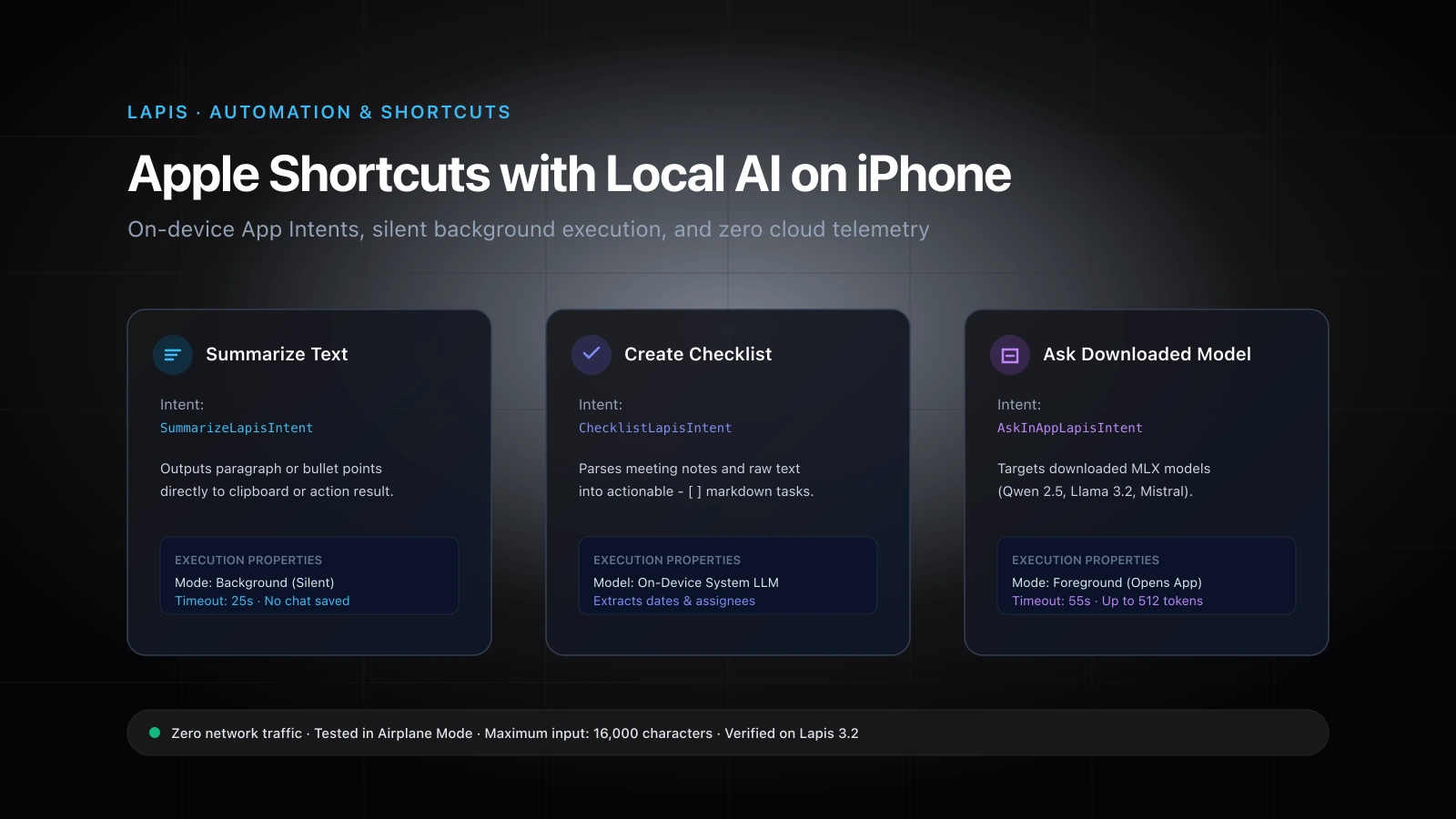
- Use "Summarize text with Lapis" or "Create a checklist with Lapis" for silent background processing without opening the app.
- Background shortcut actions use the on-device system language model with a 25-second limit and do not save conversation history.
- Choose "Ask a model in Lapis" when you need a specific downloaded open-weight model like Qwen or Llama, giving a 55-second window.
- Keep shortcut inputs under 16,000 characters and test with Airplane Mode turned on to verify zero cloud dependency.
When you need to process text on your iPhone—summarizing an article in Safari, pulling action items from meeting notes, or polishing an email draft—switching into a chat app, pasting your text, and writing a prompt adds friction. With Apple Shortcuts and Lapis, you can run these tasks straight from the Share Sheet, clipboard, or Action Button without sending a single byte to an external server.
Unlike cloud-based shortcut recipes that depend on API keys and continuous internet access, Lapis provides native App Intents that run language models directly on your device. In this guide, we’ll build an offline task extractor, examine background execution limits, and verify the workflow with networking disabled.
1. Two ways to run local AI in Shortcuts: Background vs. Foreground
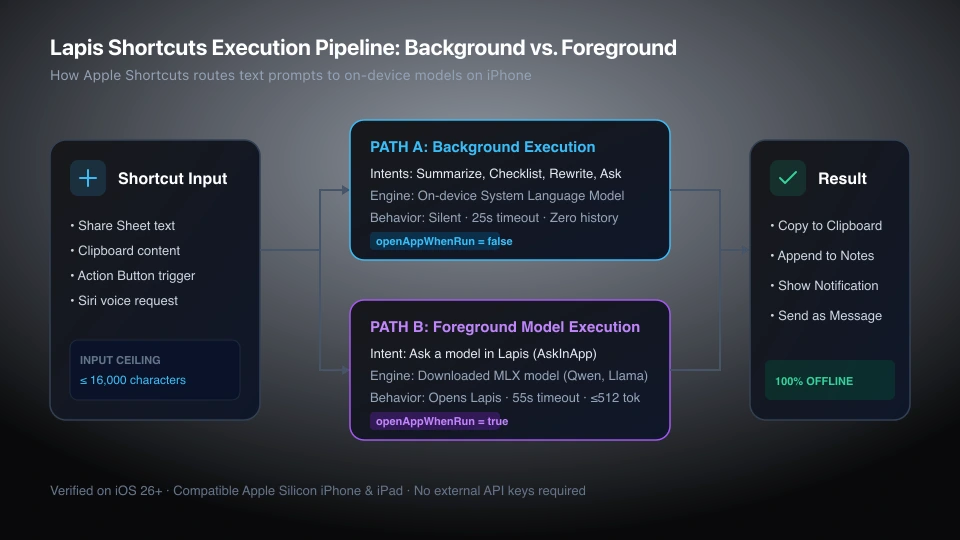
When integrating Lapis with Apple Shortcuts, you can choose between two execution architectures depending on the model you need and the complexity of the task:
- Background execution (silent): Built for fast, headless operations like Summarize text with Lapis, Create a checklist with Lapis, Rewrite text with Lapis, Translate text with Lapis, or Ask Lapis. These run on the on-device system language model without launching the Lapis UI or storing the input in your conversation history. iOS enforces a strict 25-second limit for background completion.
- Foreground execution (downloaded model): Handled by the Ask a model in Lapis action. This lets you select an open-weights model downloaded in Lapis (such as Qwen 2.5 3B or Llama 3.2 3B). It briefly opens the app interface, allows up to 55 seconds of generation time, and bounds output to 512 tokens to prevent background stalls.
| Shortcut Action | Mode | Engine / Model | Time Limit | Saved History |
|---|---|---|---|---|
| Summarize text with Lapis | Background | System language model | 25 s | None |
| Create a checklist with Lapis | Background | System language model | 25 s | None |
| Rewrite text with Lapis | Background | System language model | 25 s | None |
| Translate text with Lapis | Background | System language model | 25 s | None |
| Ask Lapis | Background | System language model | 25 s | None |
| Ask a model in Lapis | Foreground | Downloaded model (Qwen, Llama...) | 55 s | None |
See Lapis Siri, Shortcuts, and widget integrations for system compatibility details.
2. Step-by-step: Building an offline meeting-notes-to-checklist shortcut
Let’s build a shortcut that takes meeting notes from the clipboard or Share Sheet and converts them into a Markdown checklist with actionable checkboxes.
- Open the Shortcuts app on your iPhone or iPad and tap + to create a new shortcut. Name it Notes to Checklist.
- Tap the details button (the circular (i) at the bottom) and toggle on Show in Share Sheet. Set it to accept Text only.
- Add an If action to handle input: if Shortcut Input has any value, pass that variable forward; otherwise, add the Get Clipboard action.
- Search for Lapis in the action drawer and add Create a checklist with Lapis.
- Connect your text variable into the Text parameter. This action uses a dedicated prompt constraint that extracts dates, assignments, and open tasks without fabricating completed actions.
- Add Copy to Clipboard connected to the Lapis result, followed by Show Notification to alert you when processing finishes.
Reproducible test walkthrough
Copy this synthetic sample text to your iPhone clipboard to test the workflow:
Launch review notes: Elena will confirm the final build on Thursday at 4 PM. Carlos will verify memory metrics on iPhone 16 Pro. Announcement date remains to be confirmed.
Run the shortcut. The generated clipboard text preserves names, the Thursday deadline, and the unconfirmed status, formatted with standard - [ ] checkboxes:
- [ ] Confirm the final build on Thursday at 4 PM (Elena)
- [ ] Verify memory metrics on iPhone 16 Pro (Carlos)
- [ ] Agree on the announcement date
3. Summarizing and rewriting on the go from Safari or Clipboard
Dedicated writing actions come with structured enum parameters so you don’t need to write custom instructions:
- Summarize text with Lapis: Choose between two values under the Format parameter: Paragraph (a cohesive prose summary) or Bullet points (a concise list). The underlying system prompt instructs the model to preserve key names and figures without adding extraneous commentary.
- Rewrite text with Lapis: Choose from four styles under the Style parameter: Clear (grammar and clarity fixes), Concise (condensed prose preserving essentials), Professional (workplace tone), or Friendly (approachable, conversational tone).
Mind the character ceiling: Lapis enforces an input limit of 16,000 characters per request in Shortcuts. If you attempt to feed an entire 80-page document into a shortcut action, the engine returns an error asking to split the text. For large books or multi-section reports, use Lapis Documents in the full application.
If you want to reuse instructions and documents across related chats, learn how to use Lapis Projects.
4. When to use a downloaded model with “Ask a model in Lapis”
While the on-device system model provides quick turnarounds and minimal battery overhead, specialized tasks may benefit from the specific reasoning capabilities of an open-weights model.
With the Ask a model in Lapis action, you can specify the Model parameter to route prompts to a downloaded model like Qwen 2.5 3B or Llama 3.2 3B. Additionally, the companion List downloaded models in Lapis action returns a list of installed models on your device, allowing you to build an interactive menu in Shortcuts using Choose from List before generating.
If you process long documents, review how memory limits apply to local LLM context windows.
5. Testing offline and troubleshooting
To verify that your automation has zero external network dependencies:
- Enable Airplane Mode in Settings, ensuring both Wi-Fi and Bluetooth are turned off.
- Run the shortcut on clipboard text. The output should appear without network prompts.
- Open the Lapis app and review your conversation list: tasks executed via Shortcuts do not create leftover chats or pollute your saved history.
If a background shortcut fails with a timed out error, verify that the input is concise and that your device is not experiencing severe thermal throttling or Low Power Mode constraints. For longer generative requests, switch to the foreground action Ask a model in Lapis.
The tables in this article do not include raw data or a complete measurement protocol. Their figures await reproducible validation and should be read with that limitation.
Sources and references
- App Intents — Apple Developer Documentation
Apple Inc.
- Shortcuts User Guide for iPhone and iPad
Apple Support
- LLM in a Flash: Efficient Large Language Model Inference with Limited Memory
Keivan Alizadeh, Iman Mirzadeh, Dmitry Belenko, Karen Khatamifard, et al. (Apple Machine Learning Research / arXiv:2312.11514)
Local execution with Lapis
Chat with compatible models on iPhone, iPad and Mac. Download them once and use local inference offline; model size depends on your device’s resources.